

Download the free app
Download the free Libro.fm app in the App Store (iOS) or Google Play Store (Android) and log in with your email address and password. If you have any questions about how to use the app, you can reach our Support team at hello@libro.fm.

Purchase audiobooks
- Purchase with credits
- Purchase audiobooks a la carte
- Credit purchase unavailable
- Gift an audiobook
Navigate your library
- Audiobook details overview
- Library overview
- View pre-orders
- Organize audiobooks
- Access audiobook extras (PDFs)
- Delete and archive audiobooks
Download and play audiobooks
- Player overview
- Download/instant playback
- Accessing downloaded audiobooks
- Sync to Apple Watch
- Troubleshooting downloads
Customize your experience
- Set a sleep timer
- Shake to extend sleep timer
- Change the narration speed
- Create bookmarks
- Sync your listening position
Account and settings
- Manage account details
- Manage app settings
Check out our Help Center or contact us and a real, audiobook-loving human will get back to you!
Purchase audiobooks
Purchase with credits
If you become a member, you’ll receive one or two credits each month, or one credit every other month (depending on your membership plan) in exchange for an automatic charge to your credit card. If monthly membership isn’t for you, you can purchase a credit bundle for yourself on our website. These credits will be immediately available for use and will never expire.
One credit is always equal to one audiobook. Credits can be used to redeem audiobooks directly within the mobile app.
Purchase audiobooks à la carte
If you’d like to purchase one audiobook at a time, without a monthly commitment, à la carte purchases and credit bundles are available. To make an à la carte purchase, visit our website at www.libro.fm. Simply add the audiobook to your shopping cart, then enter your payment details to check out. The audiobook will be immediately added to your listening library. To purchase a credit bundle, please visit www.libro.fm/credits.
Unfortunately, we’re not able to support à la carte purchasing, or purchases of credit bundles, within the app. The app store takes a percentage of credit card purchases made through the apps, which would not be sustainable for Libro.fm and our independent bookshop partners.
Credit purchase unavailable
Some of the audiobooks that Libro.fm offers are not available for purchase with credits due to publisher restrictions and must be purchased à la carte on our site. If you have a question about a specific audiobook, please email us at hello@libro.fm, and we’ll be happy to help.

Gift an audiobook
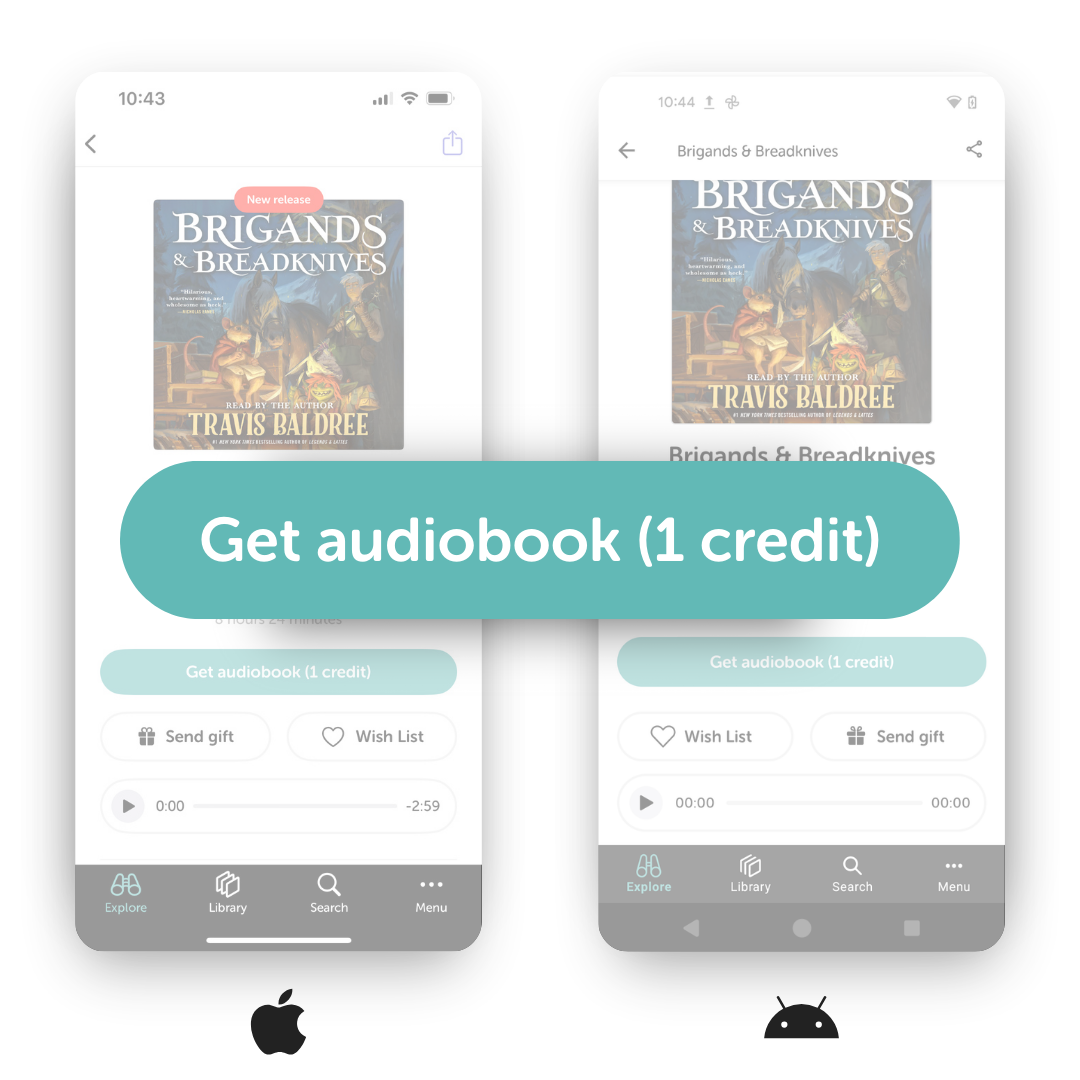
You can gift using credits within the app by tapping “Send gift” button. You can deliver the printable gift certificate yourself, or have us send the gift certificate to your recipient via email. Either way, you’ll receive an email confirmation once you’ve sent your gift.
Note: You must have credits in your account to gift within the app. If you do not currently have any audiobook credits, you can add the audiobook to your Libro.fm Wish List to gift later or purchase a credit bundle on our website.

Navigate your library
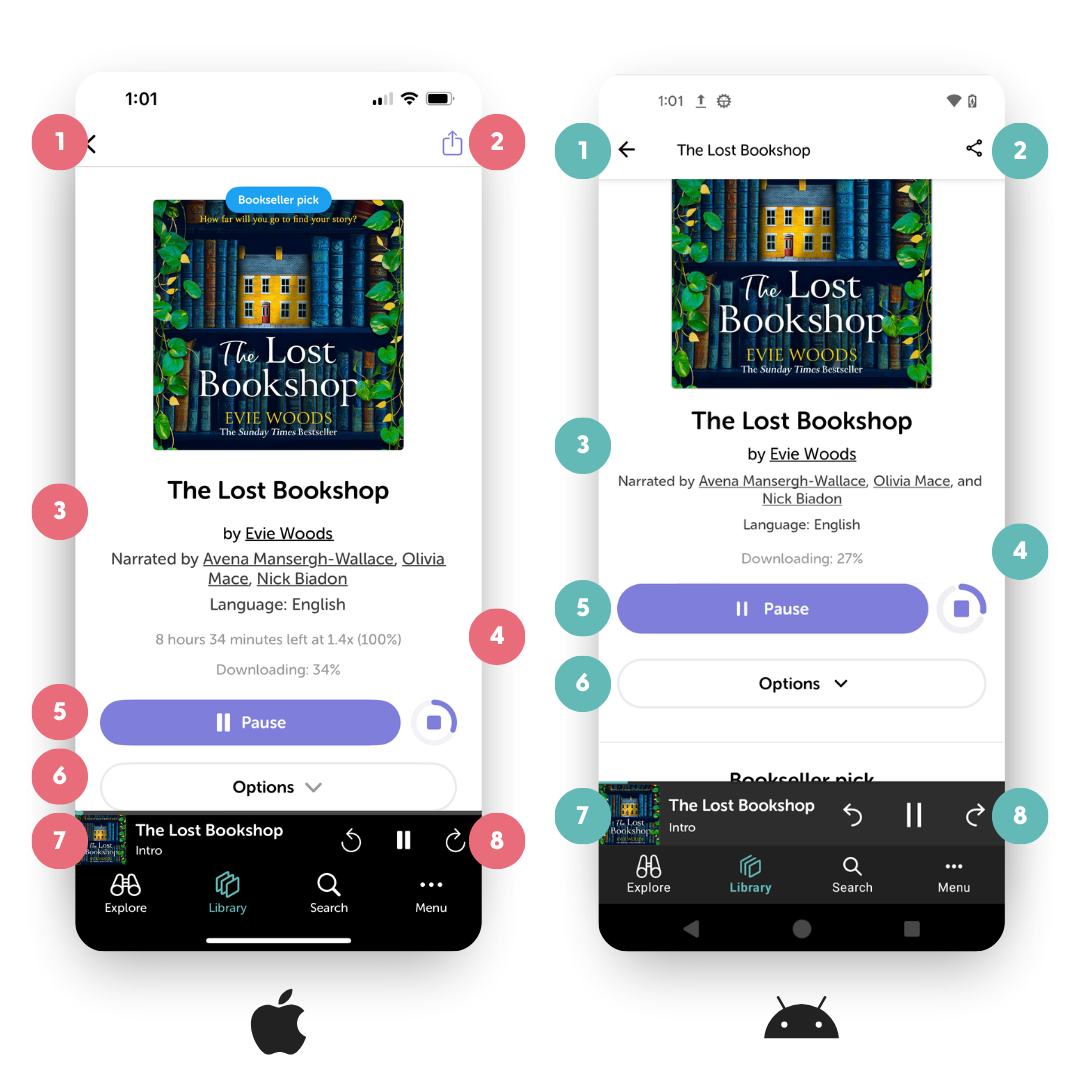
Audiobook details overview
- Back to library button
- Share to social
- Audiobook information
- Progress indicator (Tap to toggle between time listened and time remaining)
- Play button (Tap to play audiobook. This will also start the audiobook download, unless you have turned off auto-downloads in your app settings.
- Options (Bookmarks, tags, mark as finished, archive audiobook, delete audio files)
- Mini-player (Tap to open the full player view)
- Quick controls (Skip back, play/pause, skip forward)
Library overview
- See all audiobooks
- Smart (auto-generated) folders
- Number of audiobooks in folder
- Create custom tags to categorize your audiobooks
- View your audiobooks by custom tag
- View your audiobooks by genre
- Explore the Libro.fm catalog
- Access your library
- Search the catalog and your purchases
- Menu (referrals, settings, help)

View pre-orders
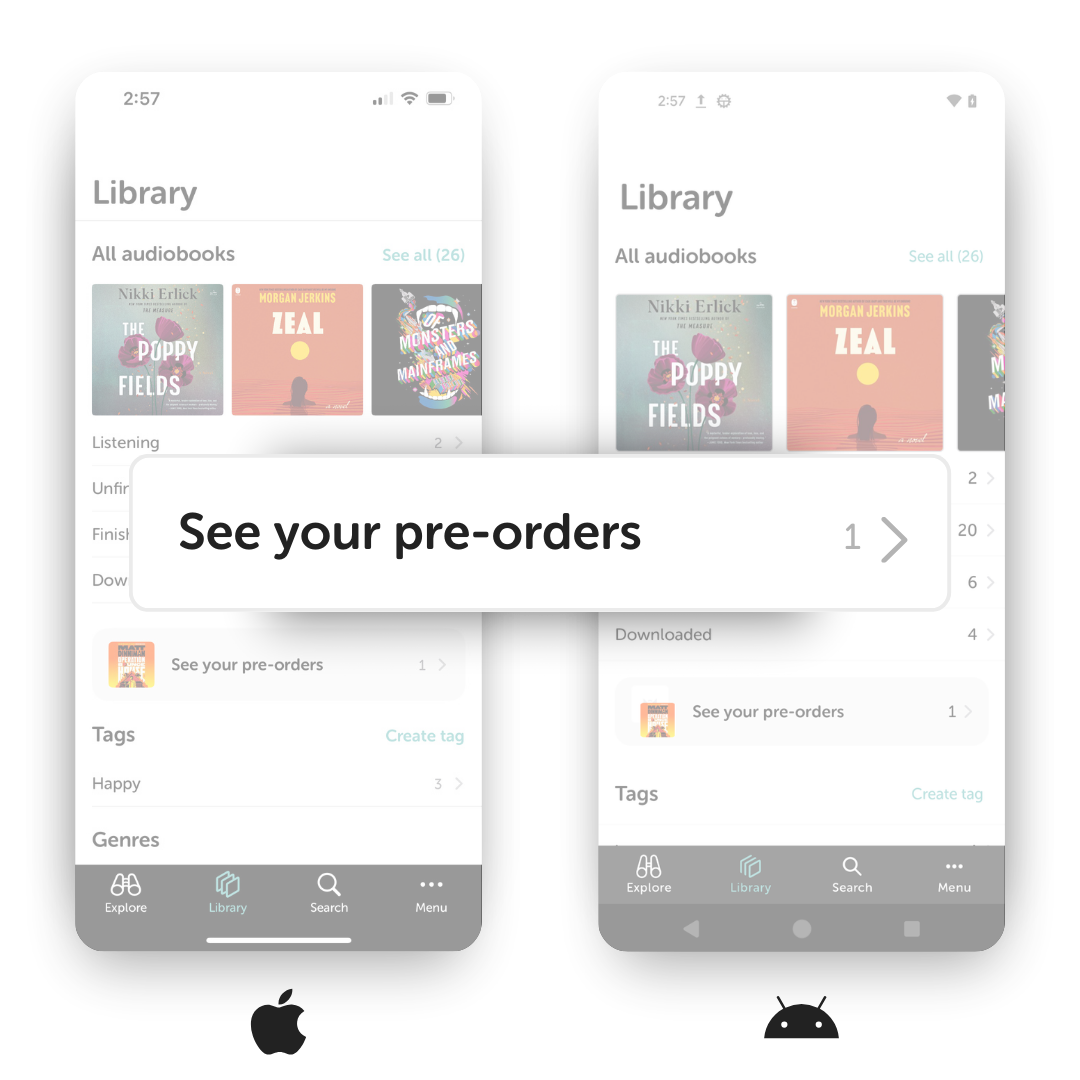
If you buy an audiobook before its release date, a pre-orders folder will appear in your library. Open this folder to see your pending pre-orders and their release dates.
On release day, we’ll email you as soon as the audiobook is ready to listen. It will automatically move out of your pre-orders folder and into your library.
Organize audiobooks

Tap the “Options” menu to get started.

You can create and assign custom tags to keep your audiobooks organized.

When you complete an audiobook, it will automatically be marked as “Finished.” If you’d like to mark an audiobook as “Finished” before you’ve completed it, tap the “Mark as finished” button.
Access audiobook extras (PDFs)
Some audiobooks include extra materials, like reading guides, infographics, or charts. To view them, selection Options beneath the Play button, then tap Audiobook Extras. You can also access any included PDFs from your account page.

Delete and archive audiobooks
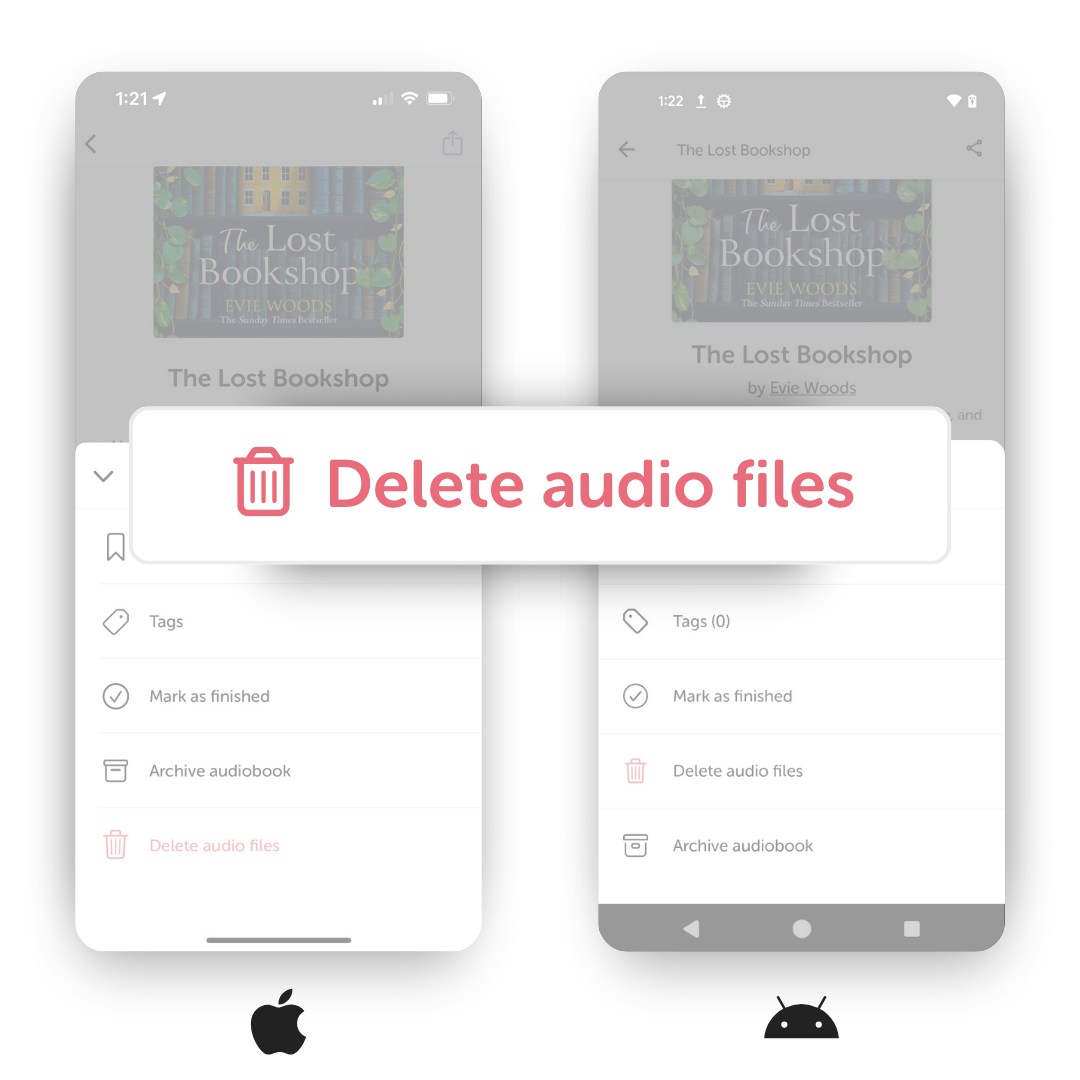
To delete audio files and free up space on your device, tap on your audiobook. Under the “Play audiobook” button you can tap “Options” and then tap “Delete audio files.” You will still be able to re-download your audiobook at any time, as the audiobook will remain visible in your folders.
To archive an audiobook, tap on your audiobook. At the bottom of the page select “Archive audiobook.” Archived audiobooks are hidden from the folders, tags and genres in your library. You can view and unarchive audiobooks by scrolling to the bottom of your library screen and selecting “Archived audiobooks.”
Download and play audiobooks
Player overview
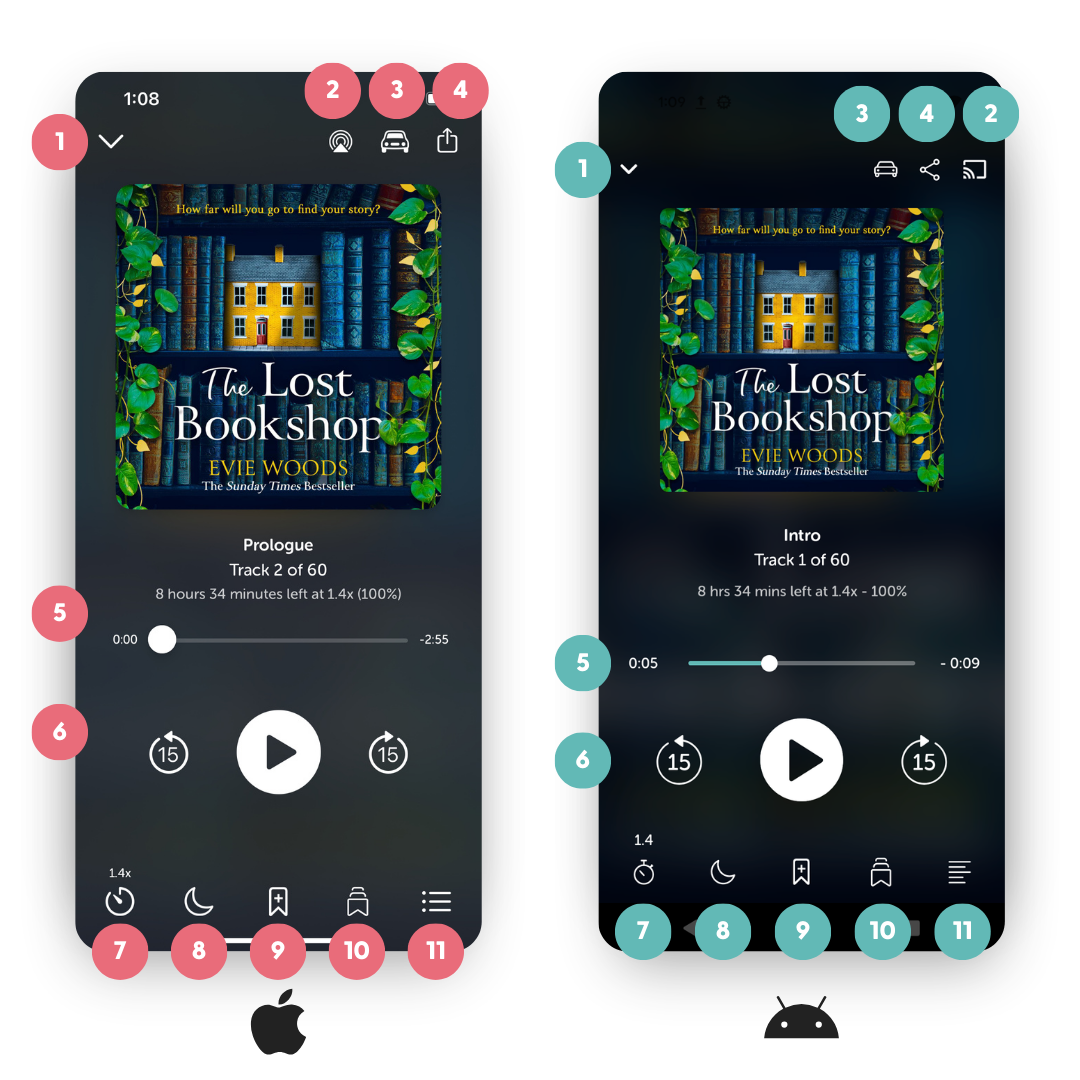
- Close the full player view
- Airplay/Casting
- Car mode
- Share to social
- Track progress indicator (Tap to toggle between time listened and time remaining)
- Audiobook controls (Skip back, play/pause, skip forward)
- Change narration speed
- Set sleep timer
- Add bookmark
- Bookmark list
- Track list
Download/instant playback

To download an audiobook to your device, simply tap the “Play” button. The audiobook will immediately start playing and begin downloading in the background.

Alternatively, you can download to your device by tapping the “Options” button and then tapping “Download audio files.”
Accessing downloaded audiobooks
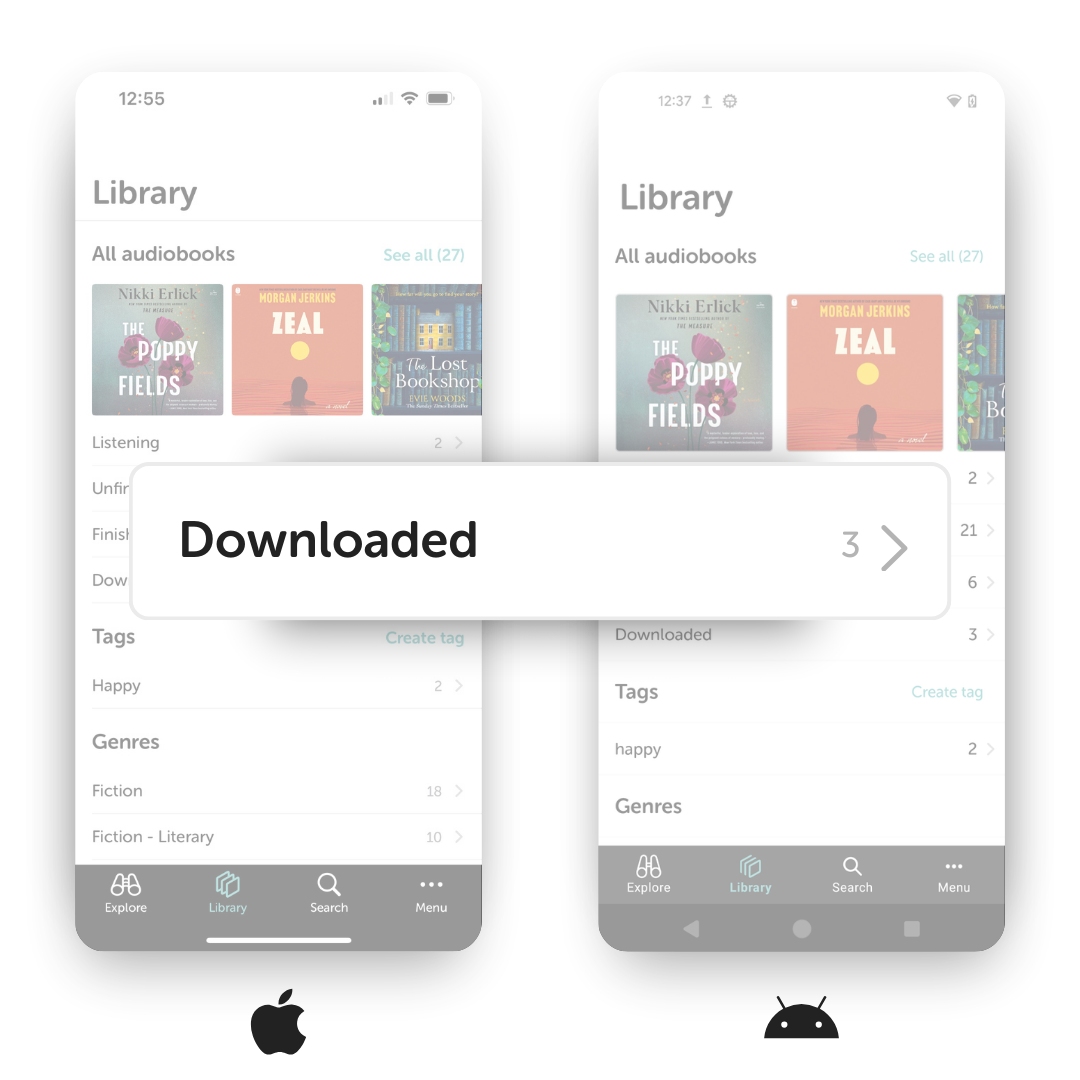
To save memory on your device, all your purchased audiobooks are stored in the cloud by default. You can tell which audiobooks have been downloaded to your device by tapping the “Downloaded” smart folder from your library.
Sync to Apple Watch
If you have an Apple Watch paired with your iPhone, you’ll now see the option to fully sync an audiobook to your watch. Check out our team’s recommendations to sync your audiobook as efficiently as possible.

Troubleshooting downloads
If you have trouble downloading your audiobook, please try the following
- Give your device a hard reset by powering down and trying again.
- Make sure you have a good WiFi connection.
- Check to see if you have enough memory on your device to download.
- Delete and reinstall the Libro.fm app on your mobile device.
If you’re still unable to download your audiobook, email us at hello@libro.fm, and we’ll be happy to help.
Customize your experience
Set a sleep timer
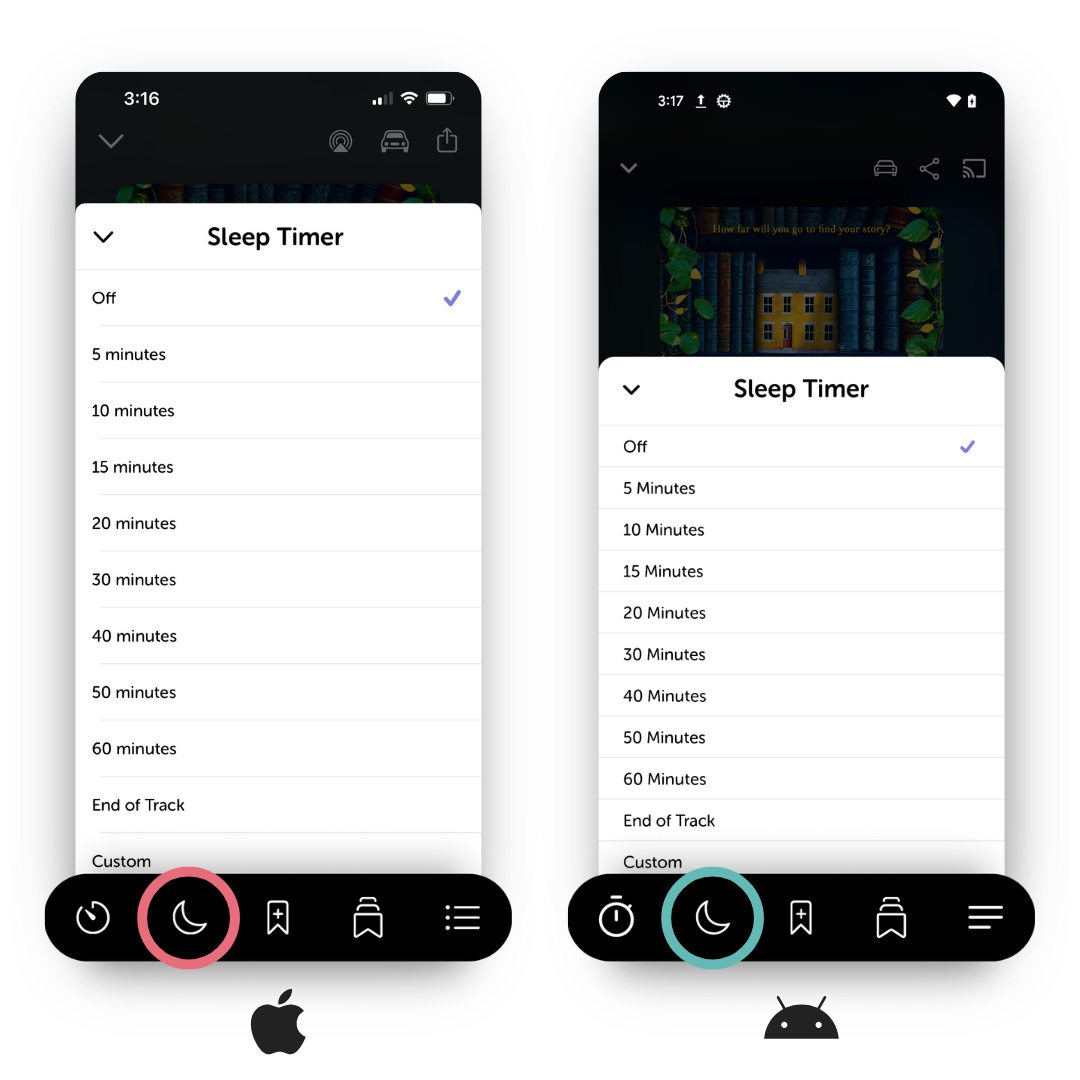
To set a sleep timer while listening to an audiobook, tap the moon icon in the bottom left corner of the full player screen and choose your desired duration.
Note: If you don’t see the moon icon, you’re likely in the minimized player. Tap the mini player to expand it and access the full controls.
Shake to extend sleep timer
To add more time while the sleep timer is running, simply shake your device.
You can check to see if this feature is enabled in your app settings. Tap Menu, then tap the gear icon in the top right corner of the screen. Beneath the Playback header, you’ll see the shake to extend sleep timer toggle.
Note: This feature is currently available on iOS only. It will be coming soon to Android!
Change the narration speed
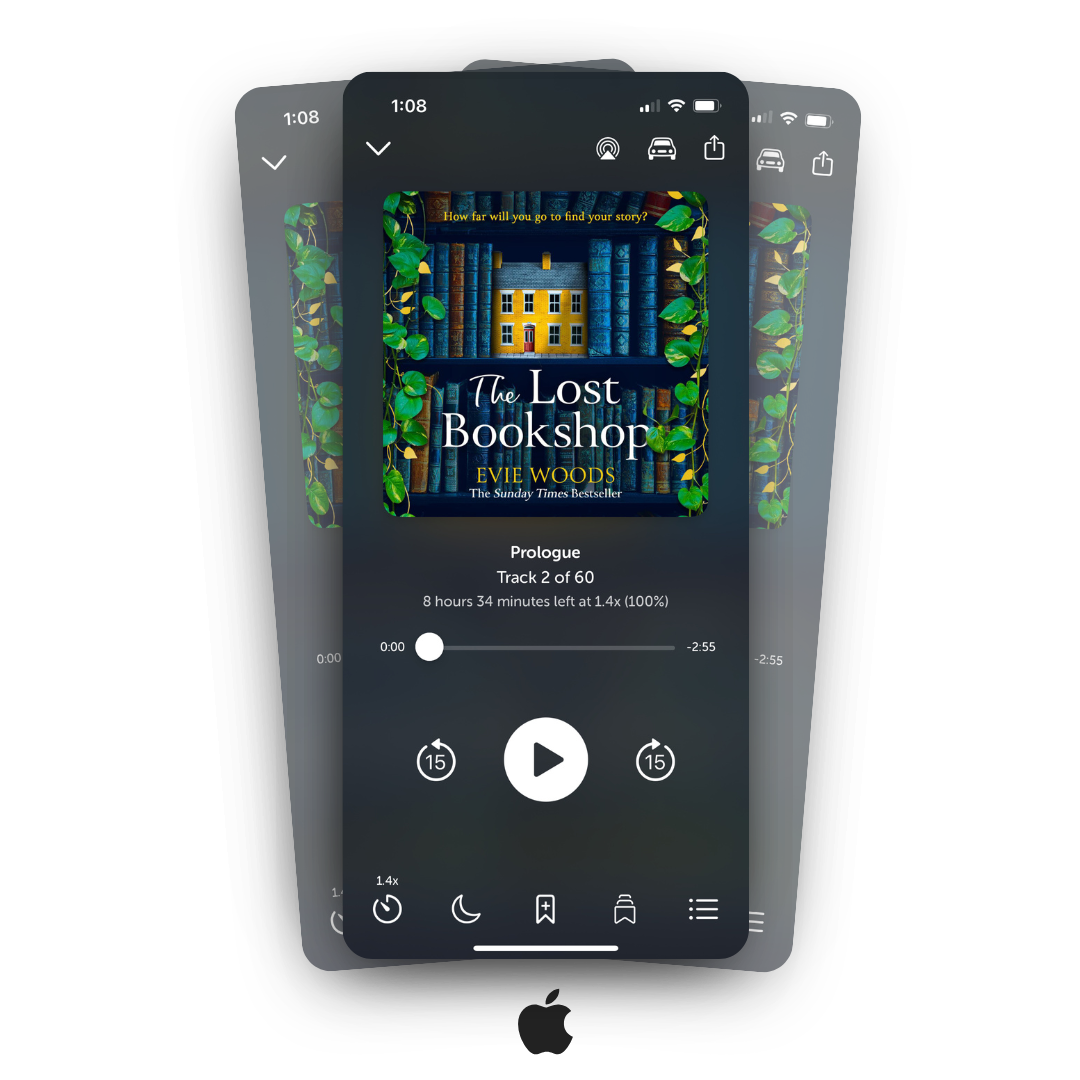
To change the narration speed while listening to an audiobook, tap the stopwatch icon in the bottom left corner of the full player screen and choose your desired speed.
To set a default narration speed for all new audiobooks in your library, open the app’s Menu. Then tap the gear icon in the top-right corner to open Settings. Under the playback options, choose your preferred default narration speed.
Note: If you don’t see the stopwatch icon, you’re likely in the minimized player. Tap the mini player to expand it and access the full controls.

Create bookmarks
Use bookmarks to quickly navigate back to memorable moments in your audiobook.

From the play screen, tap the “Add bookmark” icon at the bottom of your screen. Your bookmark will automatically be saved. You can add a note to your bookmark by tapping the “Add note” link.

To view your bookmarks, tap the “Bookmark list” icon at the bottom right corner. You can add/edit notes or delete the bookmark by tapping the three dots icon, or swiping left.
Sync your listening position
Listening position and bookmarks can be synced across all of your devices. To turn syncing on or off, open the app’s Menu. Then tap the gear icon in the top-right corner to open Settings. Switch “Cloud Sync” on or off depending on your preference.

Account and settings
Manage account details
Your account:
- Available credits
- Personal info
- Purchase history
- Supported bookstore
Manage your membership
This section will redirect you to your account page at libro.fm/user. Here you can view and make changes to your current membership plan.
Redeem a gift
Enter a redemption code to redeem an audiobook or credit bundle you’ve received.
Wish List
View audiobooks you’ve added to your Wish List.
Invite a friend
Refer others to Libro.fm. Learn more about our referral program.
Our story
Learn more about Libro.fm and our mission.
Help & FAQs
Visit the Libro.fm Help Center for useful resources and answers to frequently asked questions.

Manage app settings
Theme
Switch between light and dark mode.
App icon (iOS only)
Choose which icon appears on your device’s home screen.
Use cellular data
Allow audiobook download over cellular data when WiFi is unavailable or limited.
Don’t auto-download files
This setting is off by default. Turn it on if you prefer to stream your audiobooks instead of downloading them. Keep in mind that audiobooks that aren’t downloaded won’t be available for offline listening.
Cloud sync
Keep this on to sync your listening position across devices. Turn it off if you prefer not to sync.
Playback settings:
- Customize how far the skip back and skip forward buttons jump.
- Set a default narration speed for new audiobooks you add to your library.
- Enable shake to extend sleep timer.
